

Tuya Device Integration Guide
The Tuya integration connects devices in the Tuya ecosystem — provisioned via the Smart Life or Tuya Smart app — to Home Assistant for unified management and control. Setup is done by entering the “User Code” from the app and authorizing via a QR-code scan.
Version Info
Section titled “Version Info”| Name | OS | Core | Tuya |
|---|---|---|---|
| Version | 14.1.1 | 2025.2.2 | — |
Prerequisites
Section titled “Prerequisites”Before you start, make sure:
- HACS is installed; we recommend reading HACS Turbo before following this guide.
- Your devices are added to the Smart Life or Tuya Smart app and provisioned onto your network.
- The HA box, your computer, and the devices are all on the same LAN (see Smart Device Network Setup).
- Your phone has the Smart Life or Tuya Smart app installed, and you are logged in.
Setup Steps
Section titled “Setup Steps”Step 1: Add the Tuya integration in HA
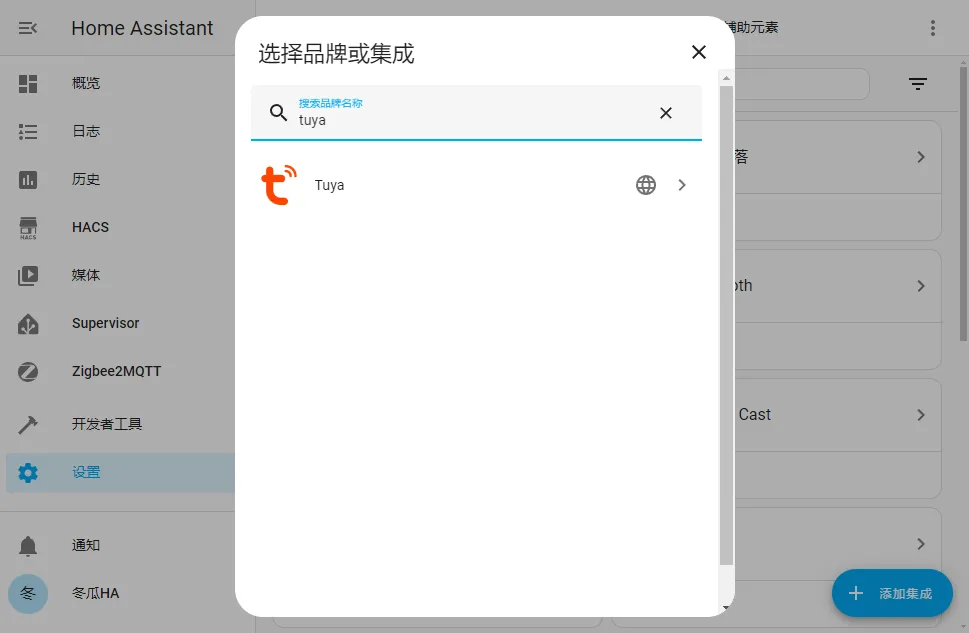
Section titled “Step 1: Add the Tuya integration in HA”Go to Settings > Devices & Services > Integrations > Add Integration, and search for tuya.
Step 2: Find your User Code in the app
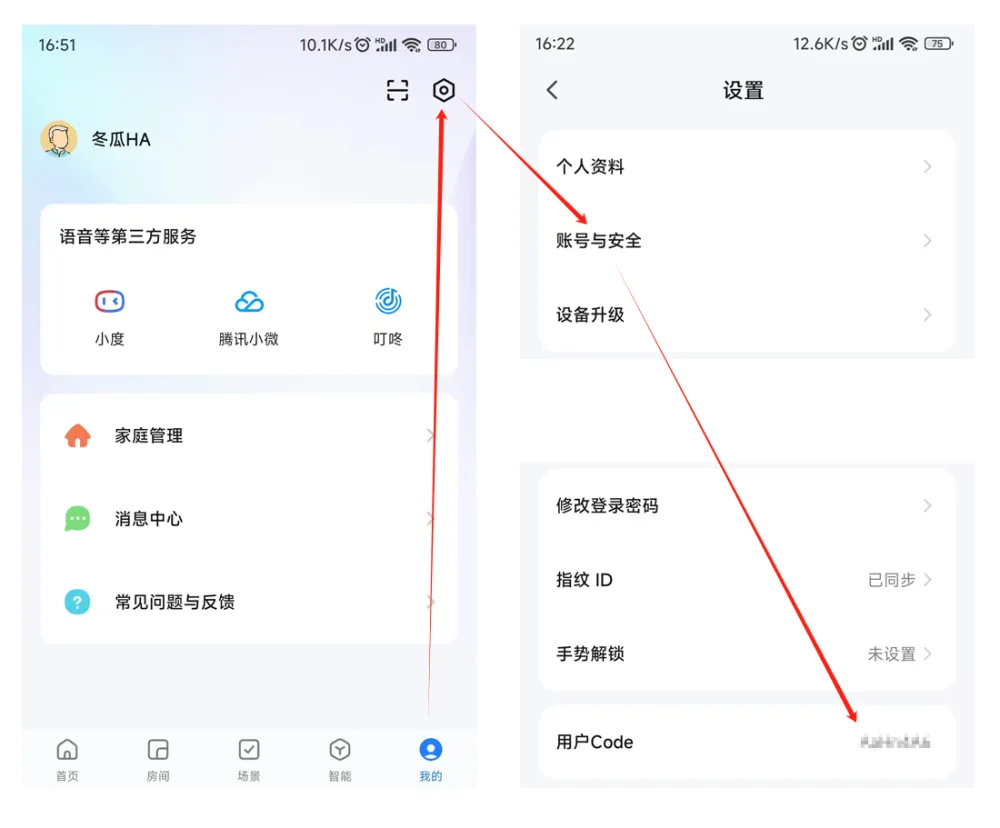
Section titled “Step 2: Find your User Code in the app”The integration will ask you to enter the User Code from Smart Life or Tuya Smart.
On your phone, install and open Smart Life or Tuya Smart, then go to Me > Settings > Account and Security > User Code to see your User Code.
Step 3: Enter the User Code in HA
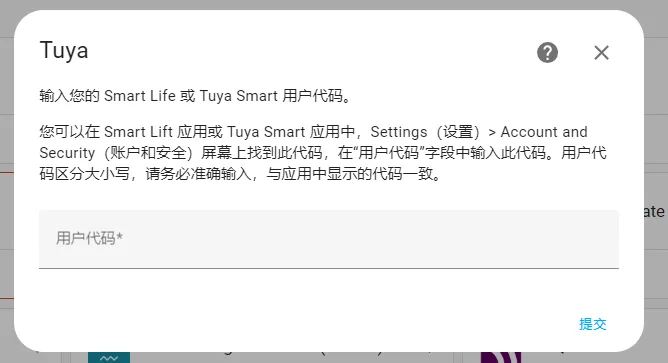
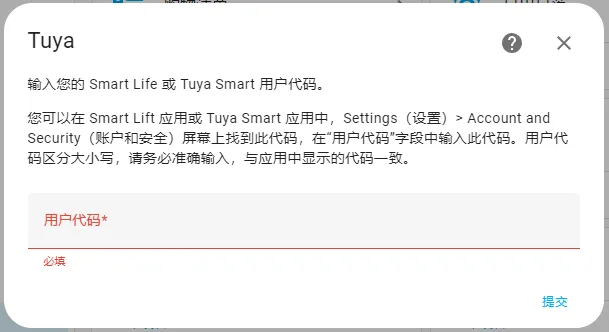
Section titled “Step 3: Enter the User Code in HA”Enter the User Code obtained in the previous step into the integration’s input field.
The User Code is case-sensitive — enter it exactly as shown in the app.
Step 4: Scan the QR code with the Tuya app and submit
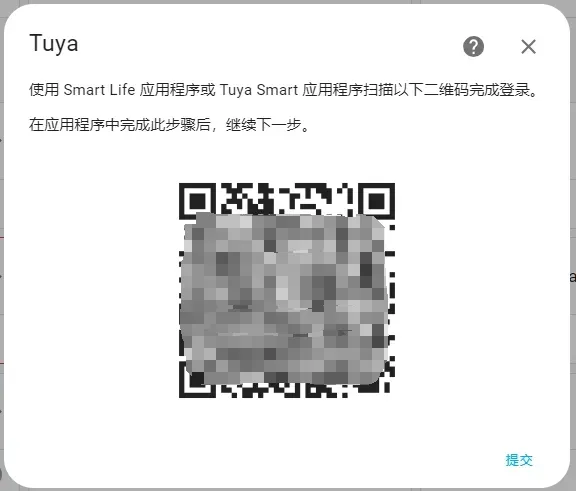
Section titled “Step 4: Scan the QR code with the Tuya app and submit”Scan the QR code shown on the page with the Tuya app, then click Submit.
Step 5: Click Finish
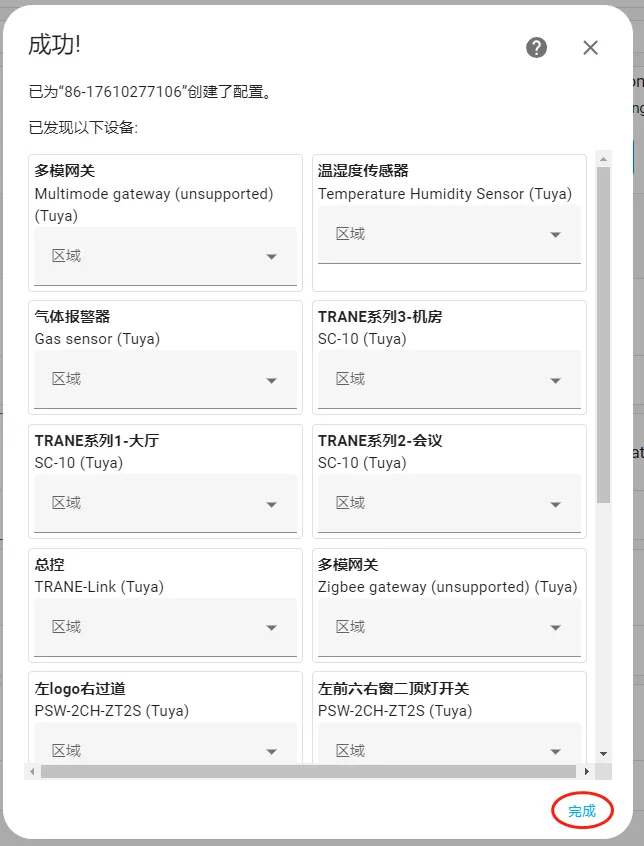
Section titled “Step 5: Click Finish”After successful authorization, click Finish — your Tuya devices will now appear in Home Assistant.
| Problem | Solution |
|---|---|
| ”Invalid User Code” error | The User Code is case-sensitive — make sure it exactly matches what’s shown in the Smart Life / Tuya Smart app under “Me > Settings > Account and Security > User Code”. |
| Can’t find the User Code | In the app, go to Me > Settings > Account and Security > User Code. |
| Can’t submit after scanning | Make sure you scanned with the Tuya app tied to that same account; click Submit after scanning. |
| Devices don’t appear | Make sure the devices are properly provisioned in the app, and that HA and the devices are on the same LAN. |
Summary
Section titled “Summary”The core Tuya setup flow is: add the Tuya integration in HA → find the User Code in the app → enter the User Code → authorize by scanning the QR code with the Tuya app → submit and finish. Once done, you can manage your Tuya-ecosystem devices in Home Assistant.