

What is seenzus?
Written for those already using seenzus — family members, space administrators, or anyone looking after a café, a guesthouse, a studio. This guide is organized by what you want to accomplish, not button by button. To get your first setup running, see the Quickstart.
What is seenzus
Section titled “What is seenzus”seenzus is the AI butler for smart spaces. It sits on top of your existing Home Assistant, quietly watching your devices and learning your habits, asking you before it acts when action is called for — surfacing only what is genuinely worth a glance. The longer it lives there, the better it knows the place — and you.
A few ideas run through everything; understanding them first makes the rest easier:
- It’s a butler, not a control panel. You don’t have to flip through switches one by one; ask “how’s home right now” and it looks the place over before answering.
- It asks before it acts. Anything that actually switches or adjusts — turning things on and off, changing the temperature — is confirmed with you before it executes.
- It’s not just for homes. Cafés, guesthouses, studios, shops — any place that needs looking after is a smart space, and home is simply the most typical one. The whole environment you hand over to its care is your Smart Space.
- It speaks plainly. In the interface you see “the living-room light,” not a device’s internal id.
Core concepts
Section titled “Core concepts”Once you understand these few terms, everything else falls into place.
- Smart Space — everything you hand to seenzus to look after: all your Sites, all your devices, the preferences it has learned, the rules you have set — taken together as one whole. One account is one Smart Space, created by you and owned by you.
- Site (place) — an independent property inside your Smart Space: your home, your café, your studio. One account can hold several Sites; one butler watches them all.
- Space — a room-level unit within a Site: living room, master bedroom, kids’ room, kitchen, the bar counter. seenzus acts, remembers, and controls at the scale of Spaces — “turn off the living-room lights” works because it knows which lights live in the living room.
- Device — every controllable or readable thing that’s connected: lights, air conditioners, curtains, door locks, sensors.
- Source / integration — the doorway through which devices enter your space. The most common Source is your Home Assistant, connected via the seenzus Bridge integration.
- Rules / automations — the hard boundaries you set for the butler (rules), and the patterns it gradually learns while watching over things for you (what it has learned).
- Assistant — the seenzus you can talk to at any time: direct your space and check on it in everyday words.
- Members — the people who share this Smart Space. You are the owner; you can invite family or colleagues and decide what they can see.
These terms nest one inside the other:
In the product, it looks like this — a Site divided into rooms, with devices in each room:
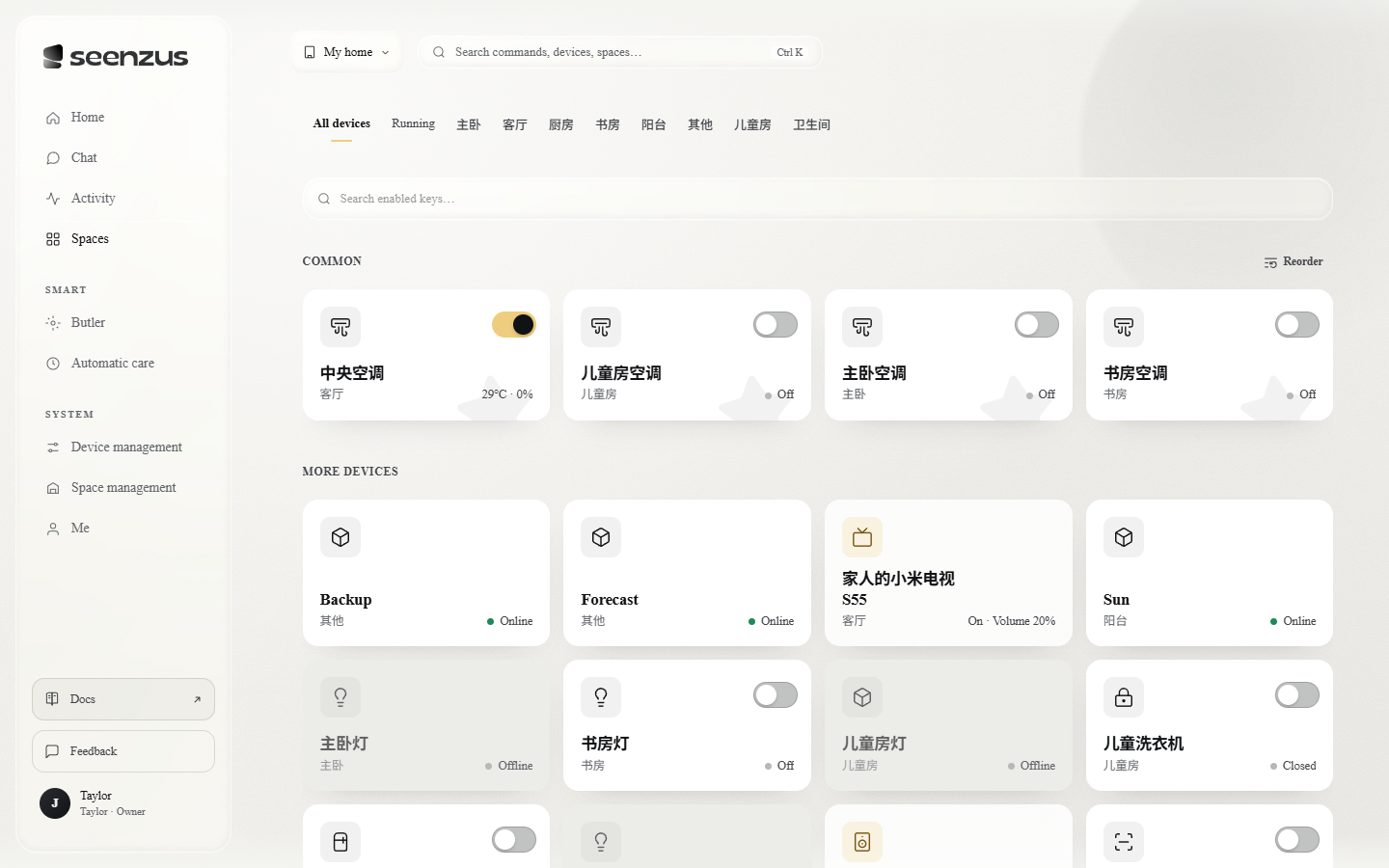 The concepts on screen: Sites and Spaces on the left, the devices in a Space on the right.
How it does its work
Section titled “How it does its work”seenzus works in a loop of learn → decide → act: it observes the daily life of your space, remembers preferences, and steps in when it should. One line runs through it all — every write operation (switching, adjusting temperature) is confirmed with you before it executes. It is the butler, not the owner.
From here, follow what you want to do: Home · Sites and Spaces · Devices · Connect Home Assistant · Rules · Assistant · Members · Settings.