

Viewing & Controlling Devices
Viewing device status
Section titled “Viewing device status”On the Spaces page, each Space is a card with its devices listed row by row: the dot at the start of a row marks online status (lit = online), and the end of the row carries a short status (off / online) and a switch. This is the fastest place to see what the place looks like right now.
Controlling devices
Section titled “Controlling devices”- Quick switching: tap the switch at the end of the row.
- Finer control: tap the device’s row (on its name) and a detail drawer slides out on the right: the main switch at the top, and below it the readings (temperature, power draw, running mode, and so on, depending on the device — adjustable items live here too).
- High-stakes devices: door locks and the like get a second confirmation (tap, then confirm again) to prevent accidental taps.
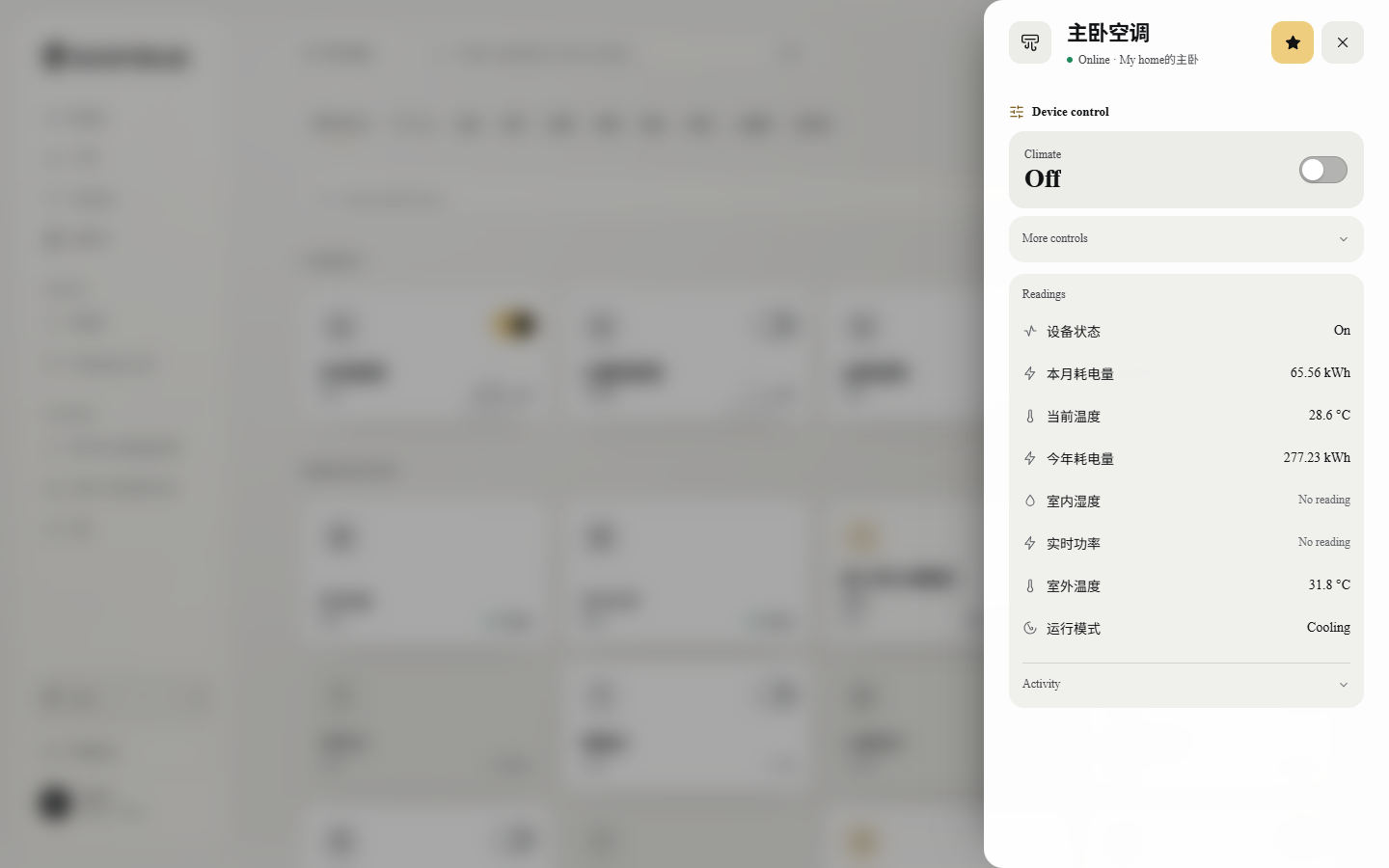 The device detail drawer. Technical specifics are collapsed under “Technical details” by default, and this device’s recent doings under “Activity” — most of the time you don’t need either.
You can also skip these rows entirely and simply say “dim the living-room lights a little” in Chat.
Understanding online / offline / abnormal states
Section titled “Understanding online / offline / abnormal states”- Online — the device is reachable and its state is live.
- Offline / unreachable — temporarily out of reach (the network is down at the place, the device lost power, the bridge is restarting, and so on). seenzus marks it as it is and won’t pretend it can control.
- Read-only — this device can be watched but not controlled (certain sensors, for instance); it shows the readings as they are and never pretends it can operate the device.