

eWeLink Device Integration Tutorial
eWeLink (Sonoff) device integration is for connecting Sonoff and other devices provisioned with the eWeLink app to Home Assistant. This tutorial installs the “Sonoff LAN” integration via HACS, then completes the setup with an eWeLink account.
Version Information
Section titled “Version Information”| Item | OS | Core | Sonoff |
|---|---|---|---|
| Version | 17.0 | 2025.2.1 | — |
Prerequisites
Section titled “Prerequisites”Before you start, make sure:
- HACS is installed. We recommend reading “How to Use HACS” before following this tutorial.
- Your devices have been added to the eWeLink app and provisioned.
- You have an eWeLink account (the phone number must include the +86 country code).
Integration Steps
Section titled “Integration Steps”Step 1: Download “Sonoff LAN” in HACS
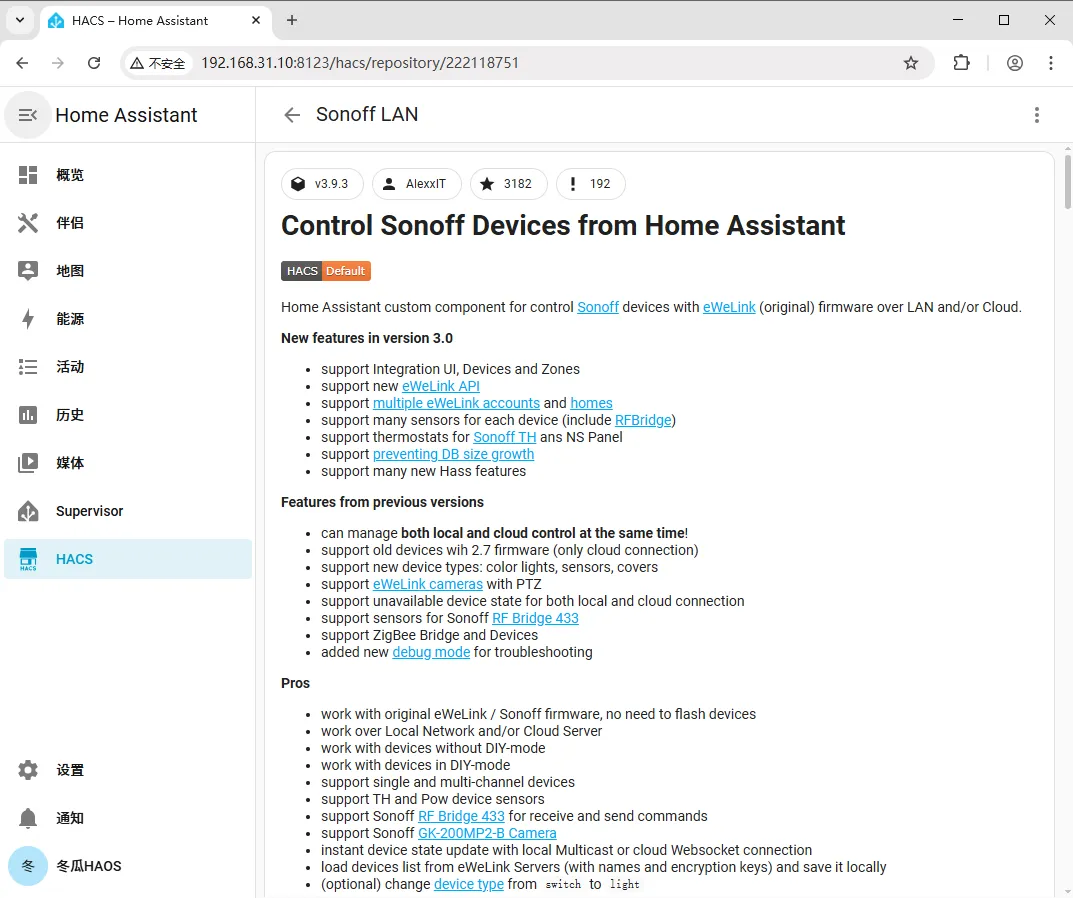
Section titled “Step 1: Download “Sonoff LAN” in HACS”Open HACS, search for Sonoff LAN, open it, and click Download.
Step 2: Restart Home Assistant
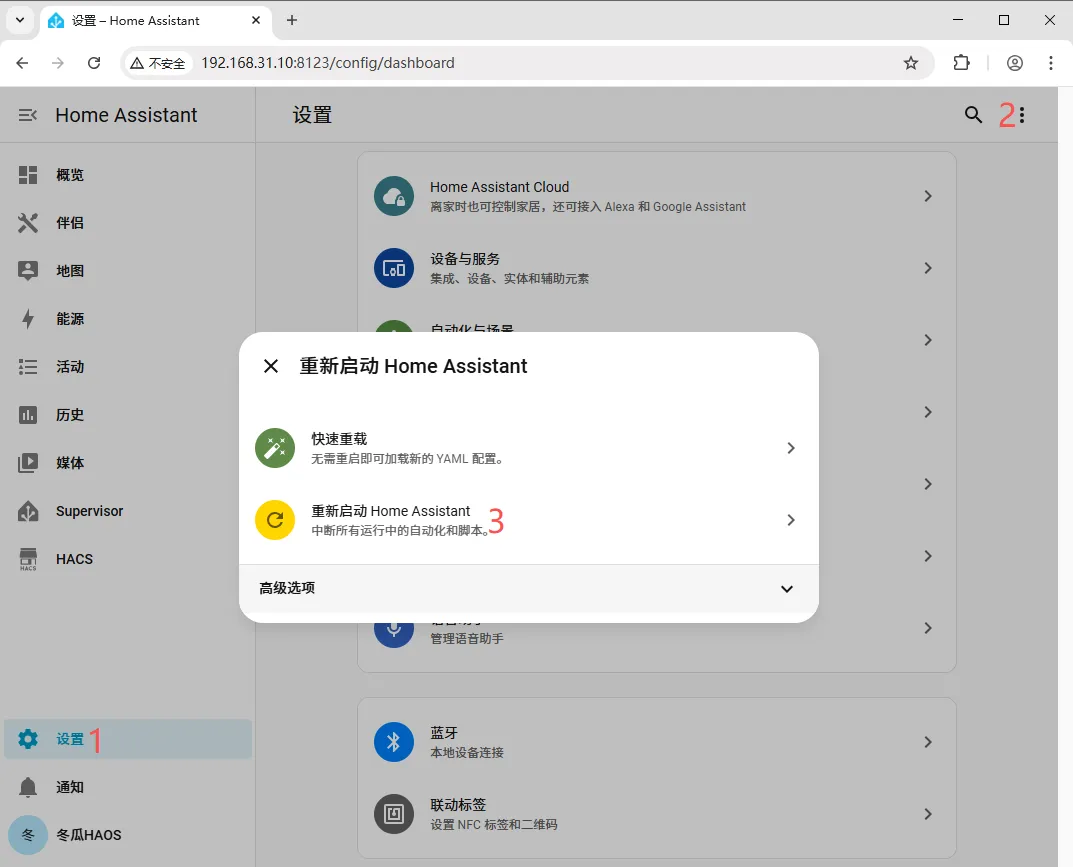
Section titled “Step 2: Restart Home Assistant”Go to Settings > ︙ (top-right menu) > Restart Home Assistant > Restart Home Assistant > Restart so the newly downloaded integration takes effect.
Step 3: Add the Sonoff Integration in HA
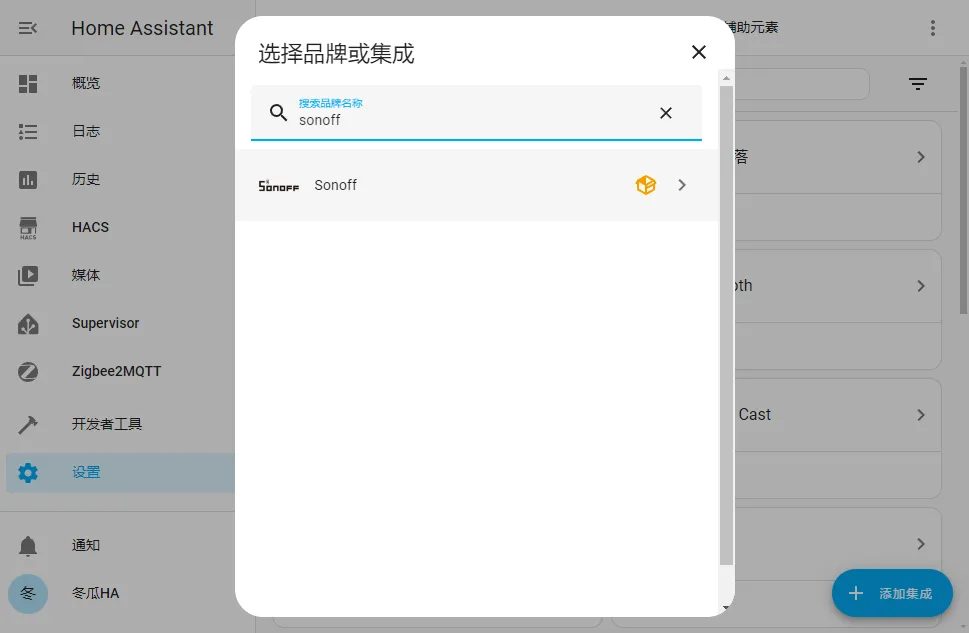
Section titled “Step 3: Add the Sonoff Integration in HA”Go to Settings > Devices & Services > Integrations > Add Integration and search for sonoff.
Step 4: Enter Your Account and Password to Finish
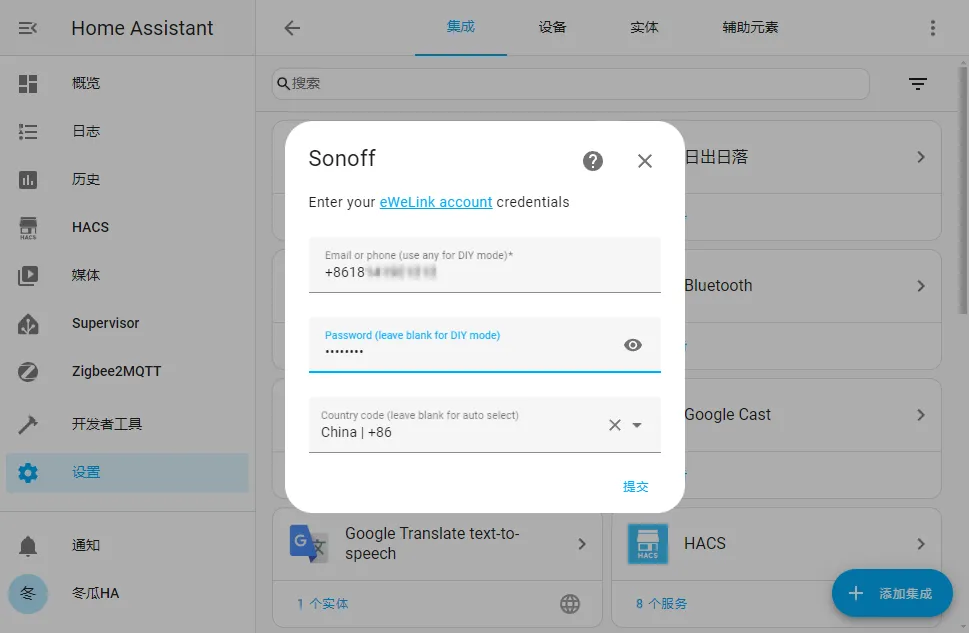
Section titled “Step 4: Enter Your Account and Password to Finish”Enter your account (make sure to include +86) and password, click Submit, then click Finish.
| Problem | Solution |
|---|---|
| Cannot find the Sonoff integration | Make sure you have downloaded “Sonoff LAN” in HACS and fully restarted Home Assistant (Step 2). |
| Login fails | The account must be a phone number with the +86 country code, and the password must match your eWeLink app login credentials. |
| Devices missing or offline | Make sure the devices are properly provisioned in the eWeLink app and are on the same local network as HA. |
Summary
Section titled “Summary”The core eWeLink device integration flow is: download Sonoff LAN in HACS → restart Home Assistant → add the Sonoff integration → enter your eWeLink account (+86) and password to finish. Once done, you can manage your Sonoff devices in Home Assistant.