

Sony TV Setup Guide
Sony TVs can be connected through Home Assistant’s Sony integration, enabling power on/off, status monitoring, and other controls from Home Assistant. This guide shows how to add the Sony integration and complete the setup using the TV’s IP address.
Before you start
Section titled “Before you start”Before getting started, confirm the following, and refer to the version information table below:
- Your Home Assistant is up and running, and you can access its dashboard.
- Your Sony TV is powered on and on the same local network as Home Assistant.
- You have found the Sony TV’s IP address (check the TV’s network settings or your router’s admin page).
| Name | OS | Core | Sony |
|---|---|---|---|
| Version | 17.0 | 2025.2.1 | — |
Setup steps
Section titled “Setup steps”Step 1: Add the Sony integration
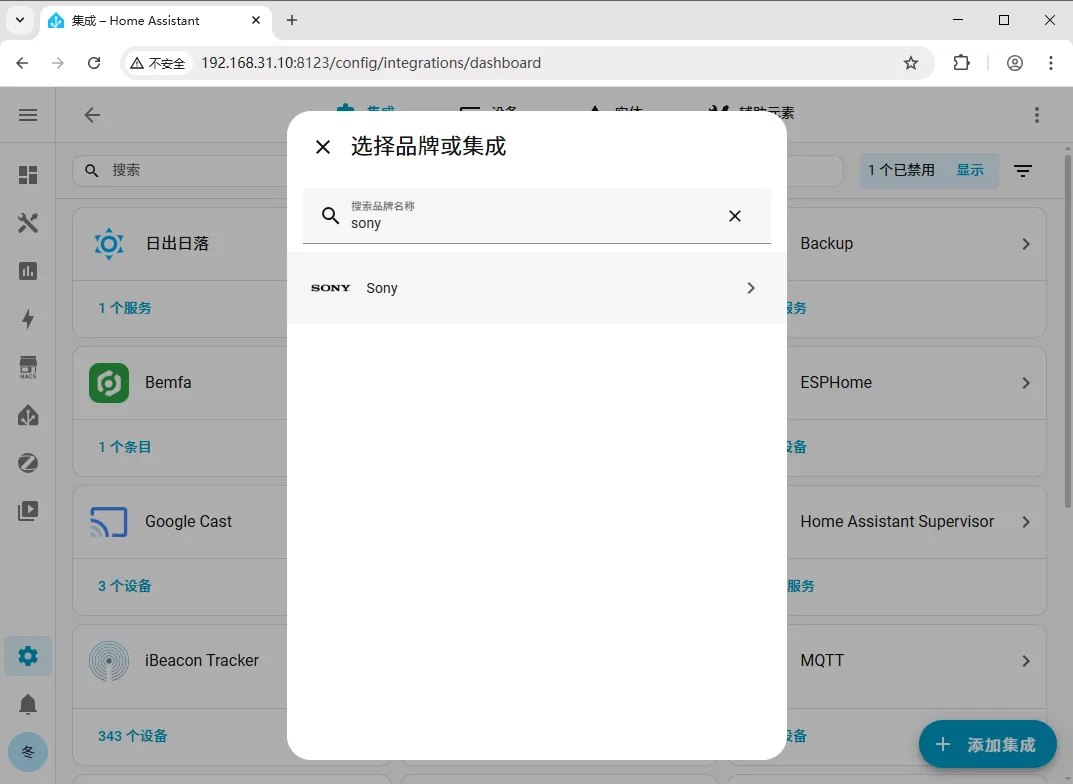
Section titled “Step 1: Add the Sony integration”Go to Settings > Devices & Services > Integrations > Add Integration, type sony in the search box, and click the search result to add it.
Step 2: Select the device type
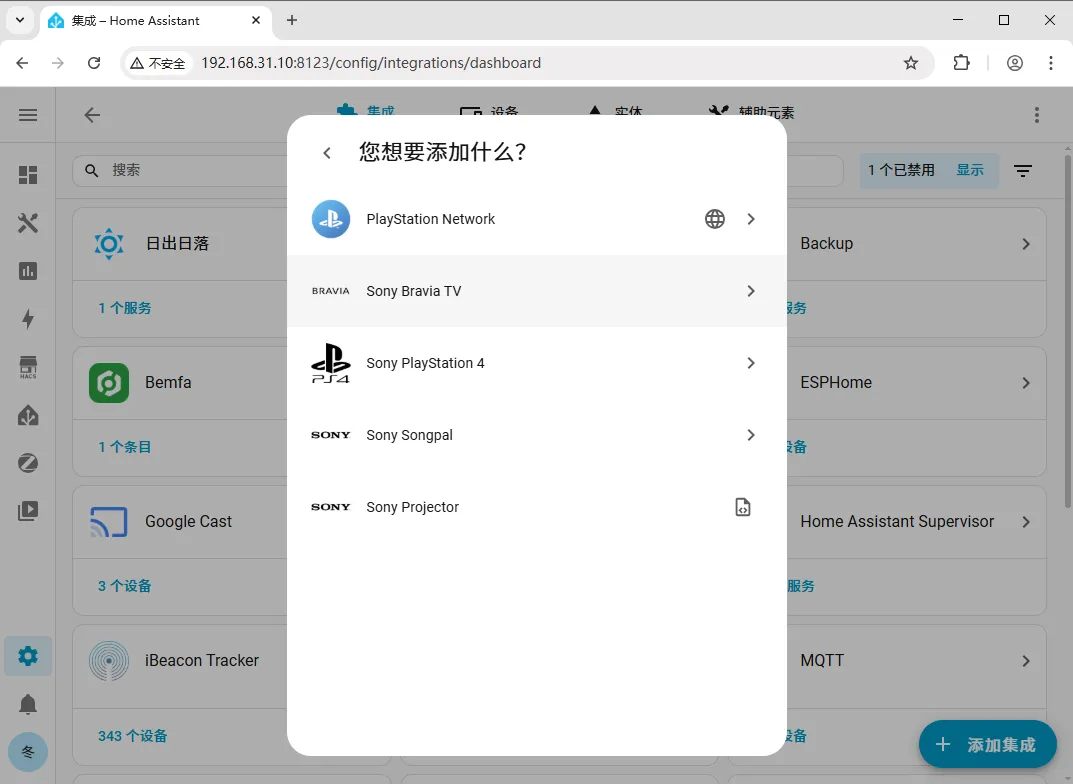
Section titled “Step 2: Select the device type”In the dialog that appears, select the device type to add (i.e., the device type matching your Sony TV).
Step 3: Enter the TV’s IP address
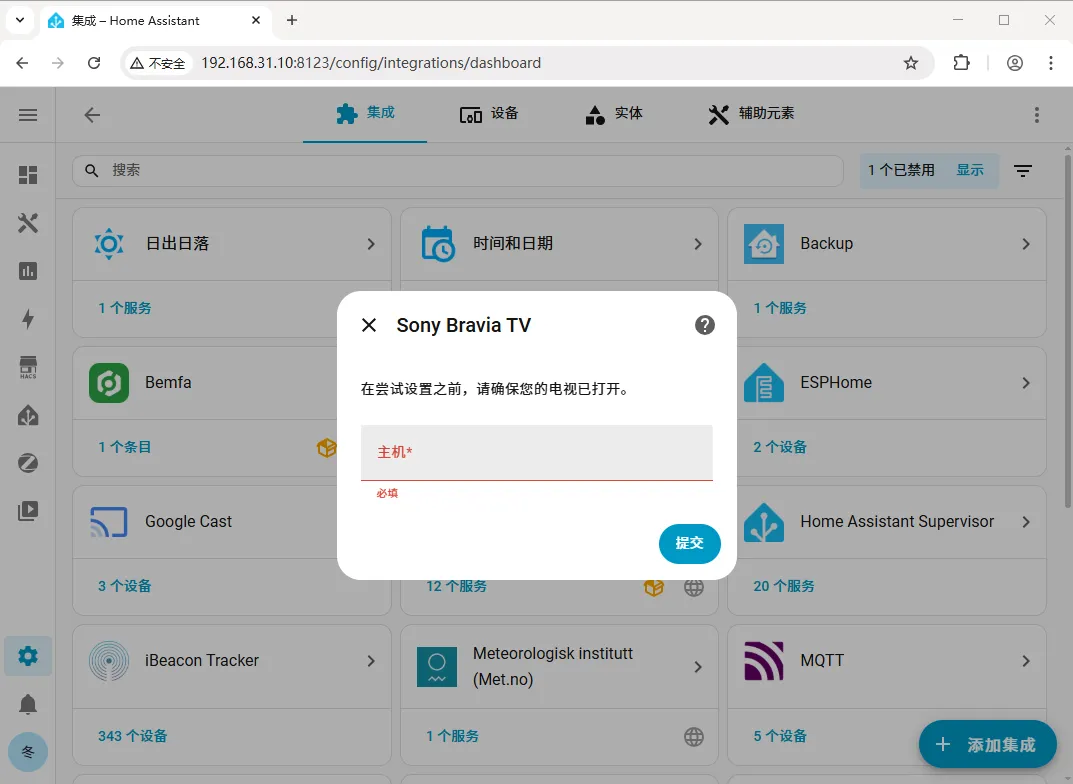
Section titled “Step 3: Enter the TV’s IP address”After finding the Sony TV’s IP address, enter it in the input field to complete the setup.
| Problem | Solution |
|---|---|
| Can’t find the Sony integration in search | Try refreshing your browser or restarting Home Assistant once; make sure the search keyword is sony. |
| Connection fails after submitting the IP | Confirm the TV is powered on, the IP address is entered correctly, and the TV and Home Assistant are on the same local network. |
| TV IP keeps changing | Assign a static IP / DHCP reservation to the Sony TV in your router, to prevent IP changes after reboots from breaking the connection. |
Summary
Section titled “Summary”The core flow for connecting a Sony TV is: Settings → Devices & Services → Add Integration → search for sony → select the device type → enter the TV’s IP address. Once done, you can control your Sony TV from Home Assistant.