

Haier Device Integration Guide
The Haier integration connects appliances in the Haier Smart Home ecosystem (air conditioners, water heaters, washing machines, etc.) to Home Assistant for unified management and control. Because this integration requires your account’s
refreshTokenandclientId, you need a packet-capture tool to extract these two credentials from the Haier Smart Home Mini Program login request.
Version Info
Section titled “Version Info”| Name | OS | Core | Haier |
|---|---|---|---|
| Version | 17.0 | 2025.2.1 | 1.1.5 |
Prerequisites
Section titled “Prerequisites”Before you start, make sure:
- HACS is installed (Donggua HAOS ships with HACS built in; to update it, see HACS Turbo).
- Your Haier devices are added to the Haier Smart Home app and provisioned onto your network.
- The HA box, your computer, and the devices are all on the same LAN (see Smart Device Network Setup).
- You have a computer (used to install the packet-capture tool and log in to Haier Smart Home via the WeChat Mini Program).
Setup Steps
Section titled “Setup Steps”Step 1: Download and install the packet-capture tool Reqable
Section titled “Step 1: Download and install the packet-capture tool Reqable”Download and install the packet-capture tool Reqable from https://reqable.com/zh-CN/download.
For an official usage guide, see https://bbs.hassbian.com/thread-25297-1-1.html.
Step 2: Run Reqable and allow firewall access
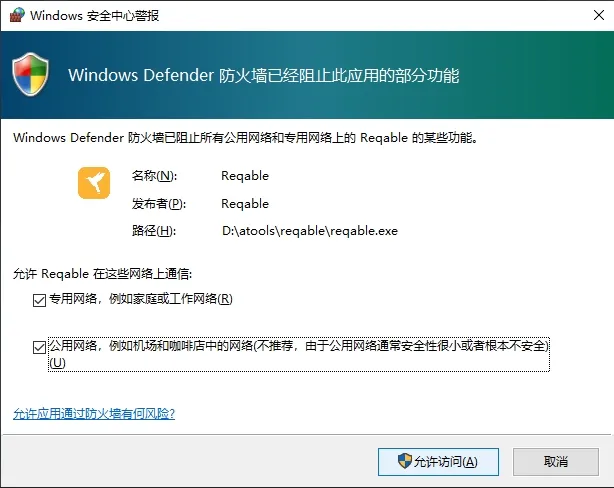
Section titled “Step 2: Run Reqable and allow firewall access”Run Reqable after installation. If a firewall prompt appears, check both Private networks and Public networks, then click Allow access.
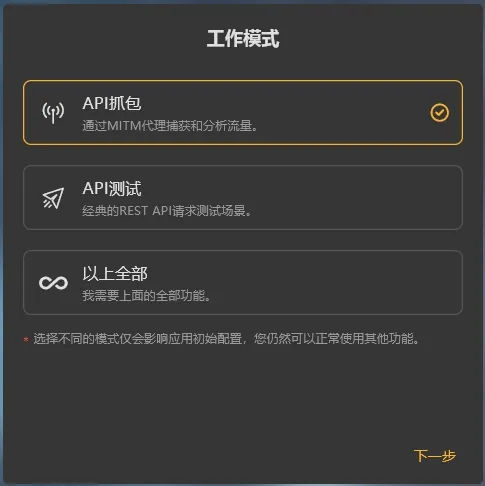
Step 3: Choose the “API capture” working mode
Section titled “Step 3: Choose the “API capture” working mode”Any working mode works; here we choose API capture.
Step 4: Install the capture certificate
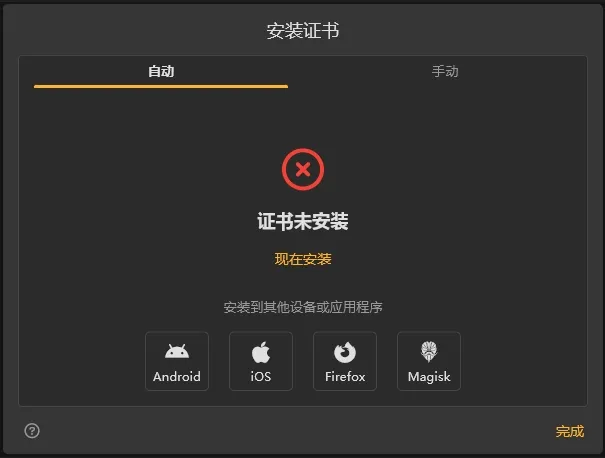
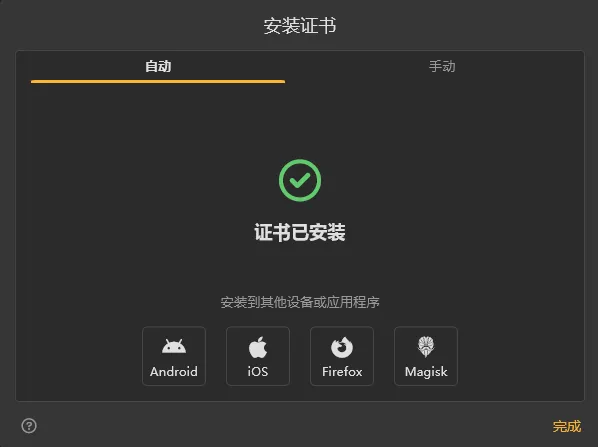
Section titled “Step 4: Install the capture certificate”On the certificate installation page, click Install now, keep the defaults on the following pages, then click Finish.
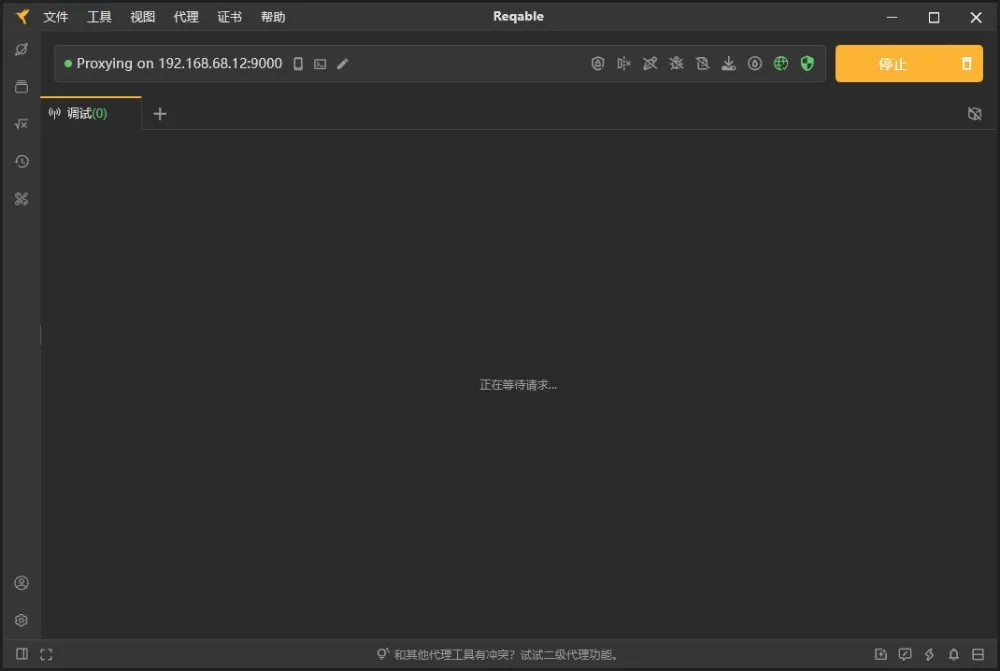
Step 5: Start capturing
Section titled “Step 5: Start capturing”Click Start in the top-right corner to begin capturing.
Step 6: Log in to Haier Smart Home via the WeChat Mini Program on your computer
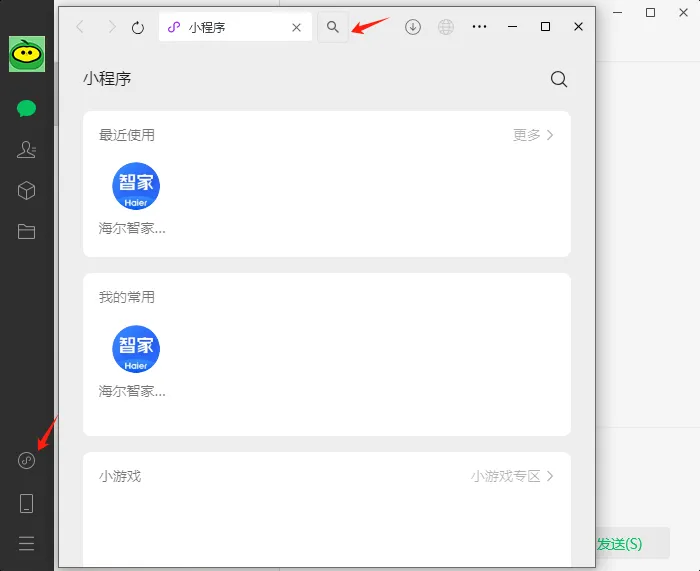
Section titled “Step 6: Log in to Haier Smart Home via the WeChat Mini Program on your computer”- Open WeChat on your computer, click the Mini Programs icon in the left sidebar, then search for the Haier Smart Home app.
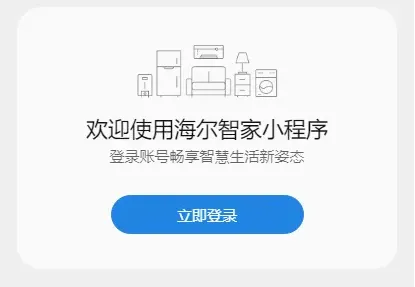
- Click through the consent prompts, and once inside the Haier Smart Home Mini Program, click Log in now.
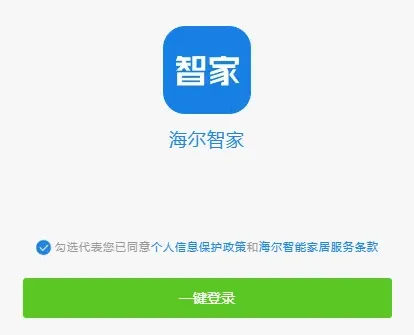
- Check the agreement box, then click One-tap login.
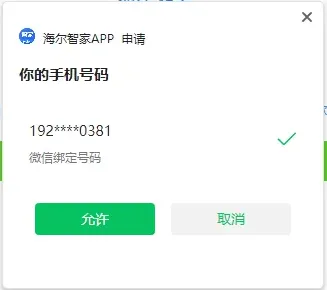
- Click Allow.
Step 7: Get the refreshToken and clientId in Reqable
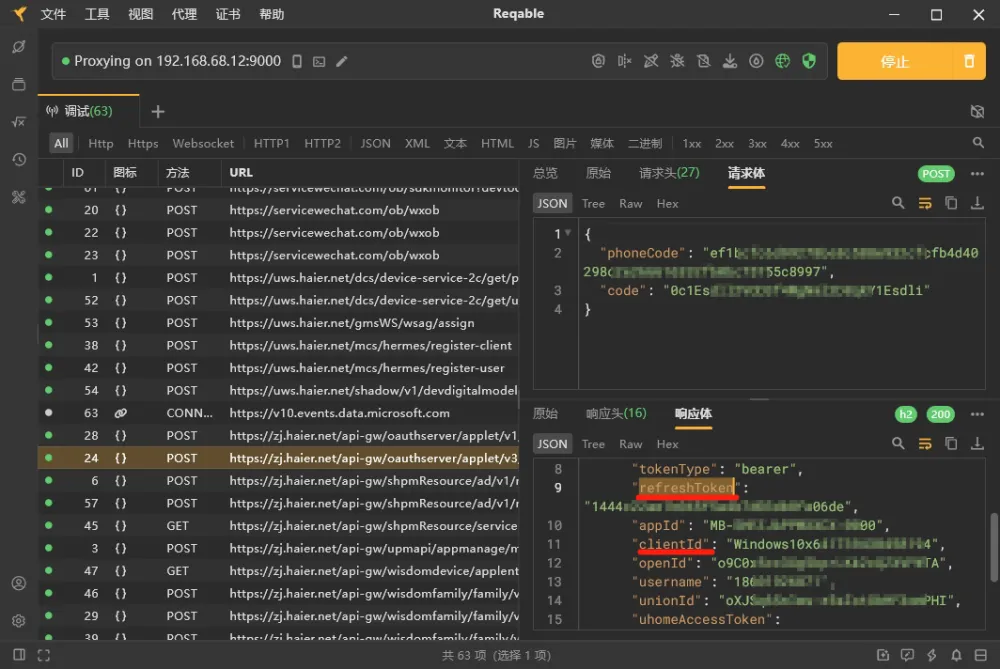
Section titled “Step 7: Get the refreshToken and clientId in Reqable”Go back to Reqable, click URL to sort the list alphabetically, then find and double-click:
https://zj.haier.net/api-gw/oauthserver/applet/v3/login/onekey
In the panel that opens on the right, click Response body and locate refreshToken and clientId.
Read carefully — many people fail to connect because they copied the wrong line.
Step 8: Add the Haier integration in HA and enter the credentials
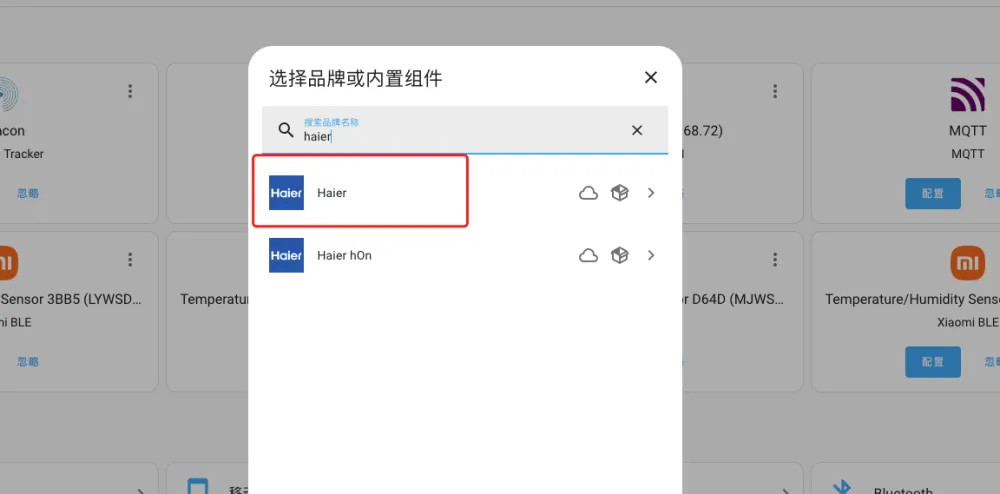
Section titled “Step 8: Add the Haier integration in HA and enter the credentials”- In HA, go to Settings > Devices & Services > Integrations > Add Integration, and search for haier.
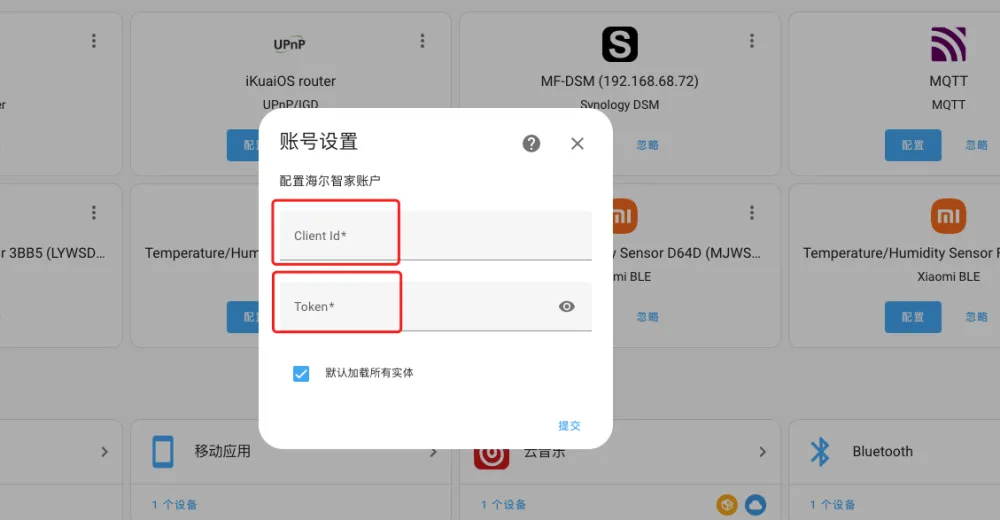
- Enter the refreshToken and clientId obtained in the previous step.
- Once in, you will see all supported devices.
| Problem | Solution |
|---|---|
| Can’t find the login request | Make sure you clicked Start in the top-right corner before logging in via the Mini Program; in Reqable, click URL to sort, then look for zj.haier.net/.../login/onekey alphabetically. |
| Connection fails after entering credentials | Usually the refreshToken or clientId was read from the wrong line or copied incompletely. Go back to the response body and carefully verify you copied them fully and accurately. |
| Devices not found / incomplete | Make sure the devices are added to the Haier Smart Home app, and that the HA box, computer, and devices are on the same LAN. |
| The capture tool can’t capture HTTPS content | Make sure the capture certificate is properly installed and trusted (Step 4); reinstall the certificate if necessary. |
Summary
Section titled “Summary”The core Haier setup flow is: install the packet-capture tool Reqable → install the certificate and start capturing → log in to Haier Smart Home via the WeChat Mini Program → capture the login request to get the refreshToken and clientId → add the Haier integration in HA and enter the credentials. Once done, you can manage your Haier Smart Home devices in Home Assistant.