

Home & Activity
Home is seenzus’s first glance at the place on your behalf. You land here after signing in (email and password, or GitHub / Google).
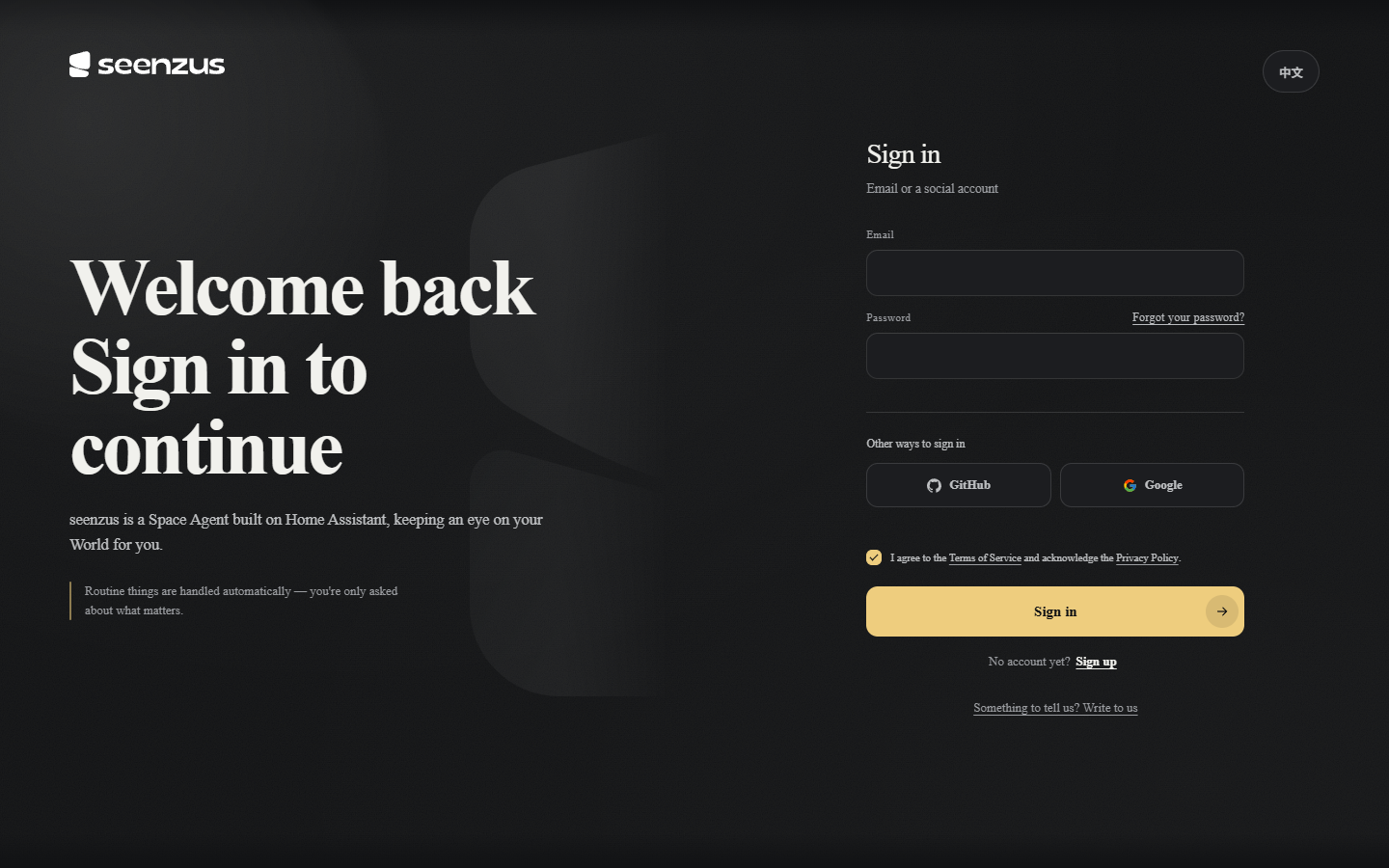 The sign-in entrance.
How to read the overall status
Section titled “How to read the overall status”The large line at the top is how many things it has handled for you today, followed by a sentence on whether all is steady right now (such as “All quiet at the moment — I’m keeping watch”). On the right, the Under this roof live card shows where people are present along with temperature, humidity, and other ambient readings; below it are the online devices, which you can switch directly.
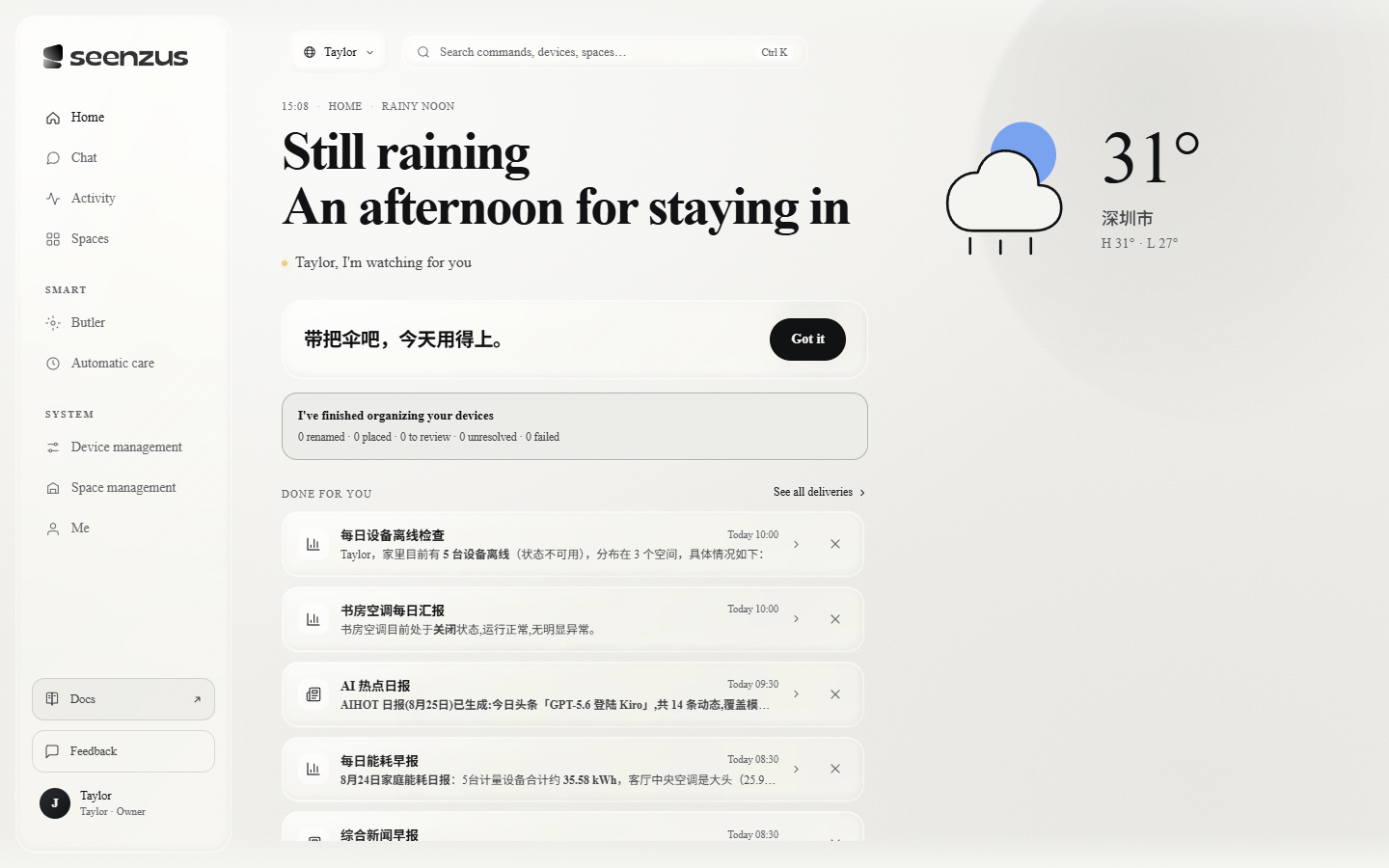 Home tells you three things: whether all is steady right now, whether anything needs your call, and what it has recently done for you.
How to check what needs your attention
Section titled “How to check what needs your attention”The lemon-colored line — “A few small things I’d like to ask you about” — is what needs your call (say, it anticipates something you may want done, or a device is waiting to be sorted); open it and handle each item in turn. When there is nothing to ask, the line simply doesn’t appear — the quiet is real, not a placeholder.
How to reach the main features
Section titled “How to reach the main features”Navigation sits on the left (with its equivalent entry on mobile): Home · Chat · Activity · Spaces · Butler · Scheduled Tasks · Integrations (visible to the owner only) · Me.
- To see every single thing it has done, open Activity: “what it did for you” is laid out by today / yesterday, each entry marked with its time and origin (manual / external / AI-initiated), and you can filter by origin.
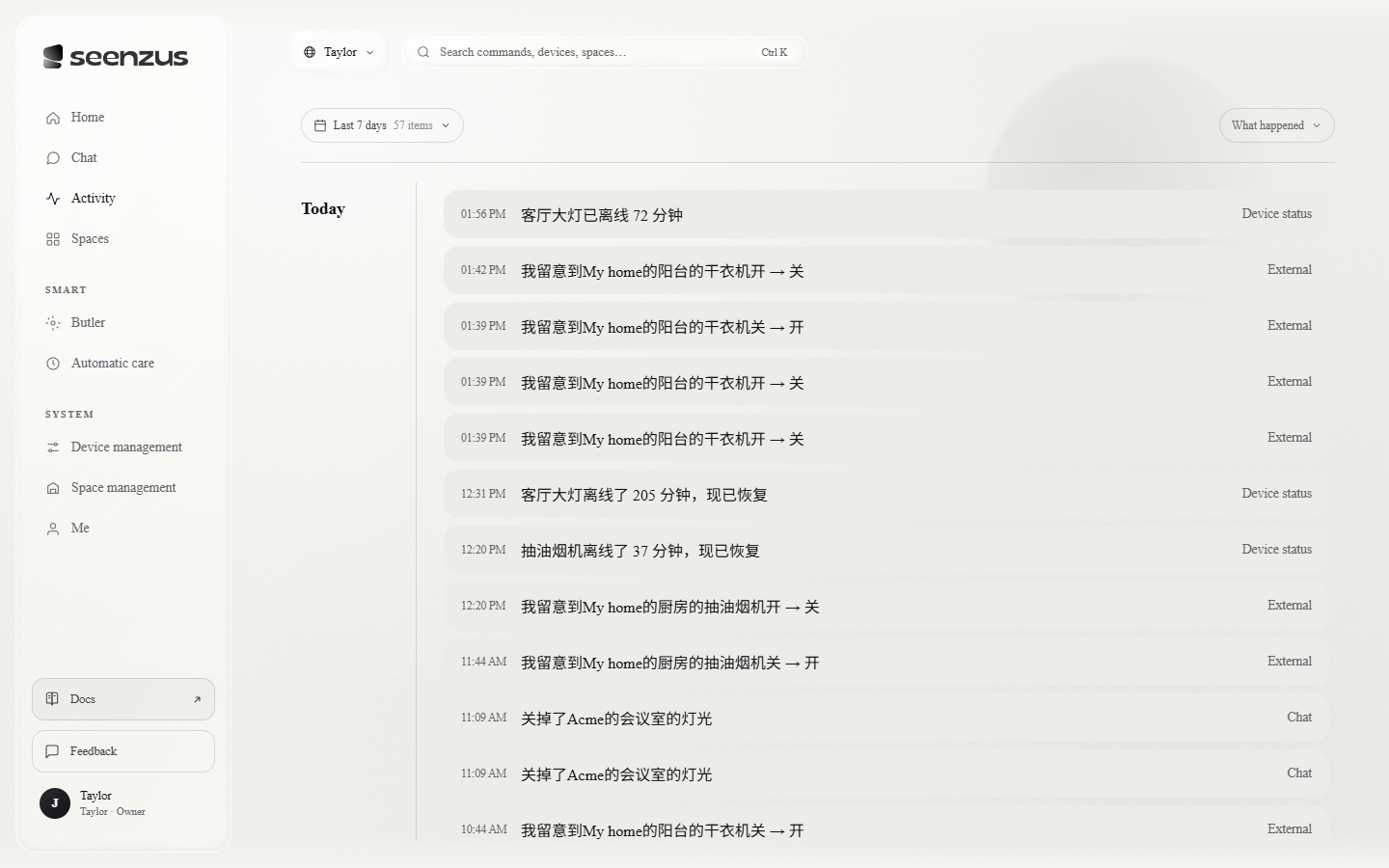 Activity lays out every action that has happened in the place, marked with its origin.