

Xiaomi Miot Setup Guide
The Xiaomi Miot integration signs in with your Xiaomi account and connects the Xiaomi Home smart devices under it to Home Assistant. It supports filtering devices at import time (excluding or only including specified devices), making it easy to sync only the devices you need into HA. This guide walks through the full process of setting up the Xiaomi Miot integration on Donggua HAOS.
Version information
Section titled “Version information”| Name | OS | Core | Xiaomi miot |
|---|---|---|---|
| Version | 17.0 | 2025.2.1 | 1.1.2 |
Prerequisites
Section titled “Prerequisites”Before you start, make sure:
- Donggua HAOS ships with the required components pre-installed; if an update is needed, use HACS Turbo.
- Your smart devices have already been added to your Xiaomi account in the Mi Home / Xiaomi app.
- The HA box, your computer, and the devices are on the same local network (see the “Smart Device Network Setup” doc for detailed configuration).
- Have your Xiaomi account and password ready (used for sign-in).
Setup steps
Section titled “Setup steps”Step 1: Add the integration and search
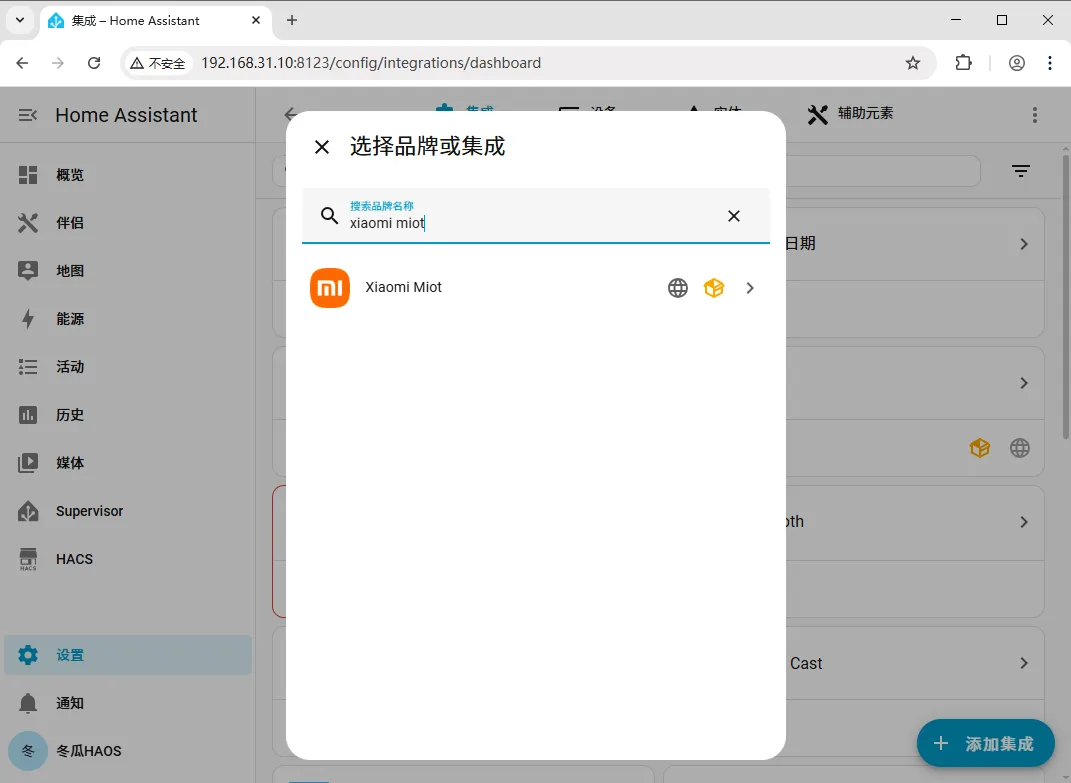
Section titled “Step 1: Add the integration and search”In Home Assistant, go to Settings → Devices & Services → Add Integration, and search for xiaomi miot in the search box.
Step 2: Choose “Account integration”
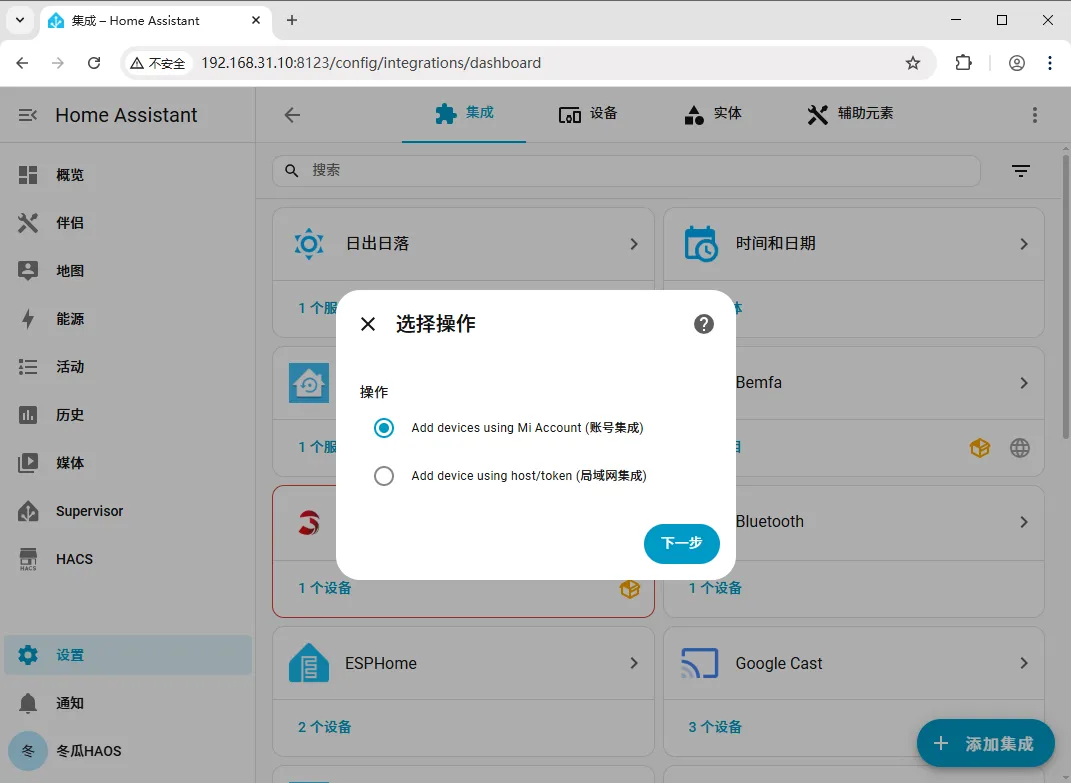
Section titled “Step 2: Choose “Account integration””In the window that appears, keep the default “Account integration” option selected and click Submit.
Step 3: Enter your Xiaomi account and password
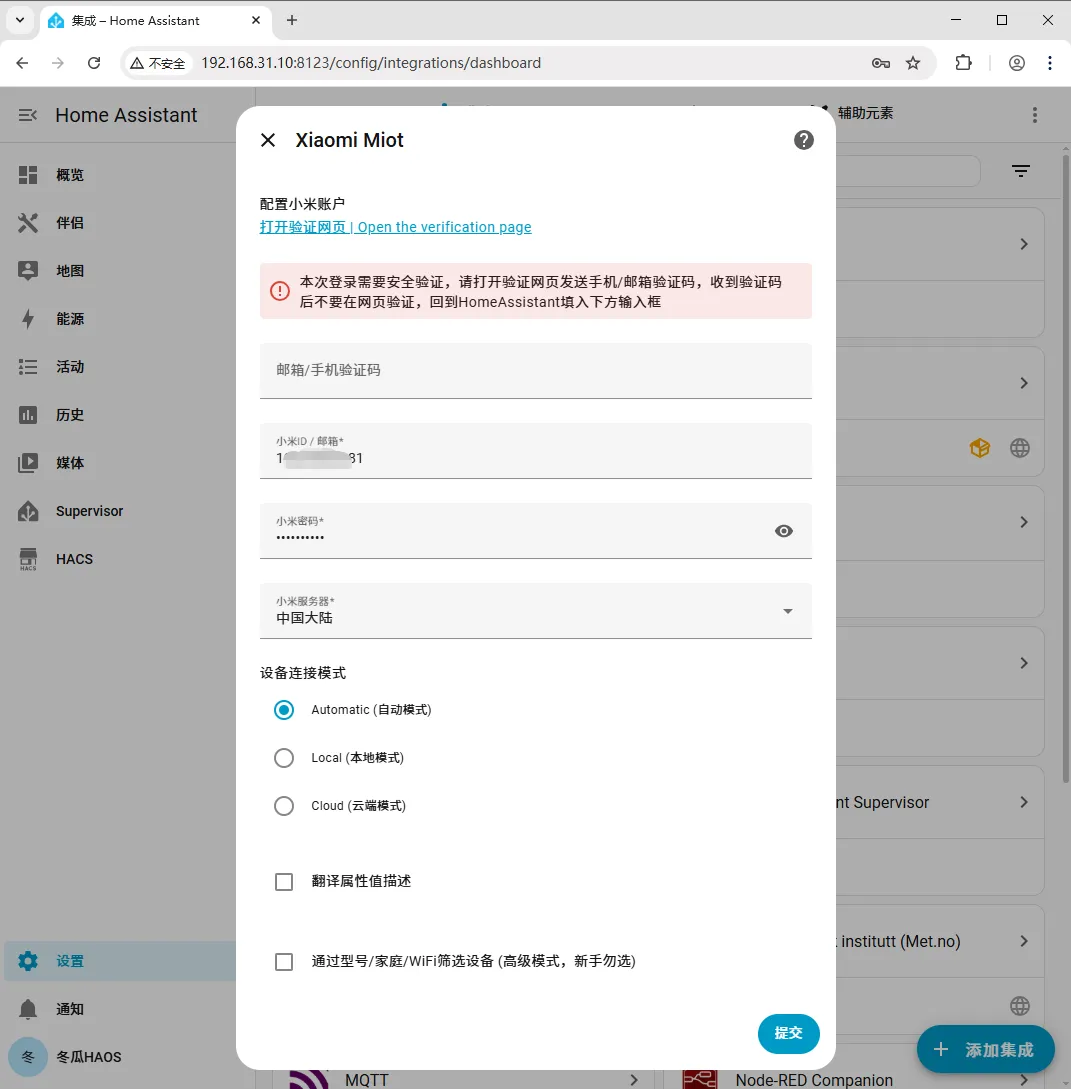
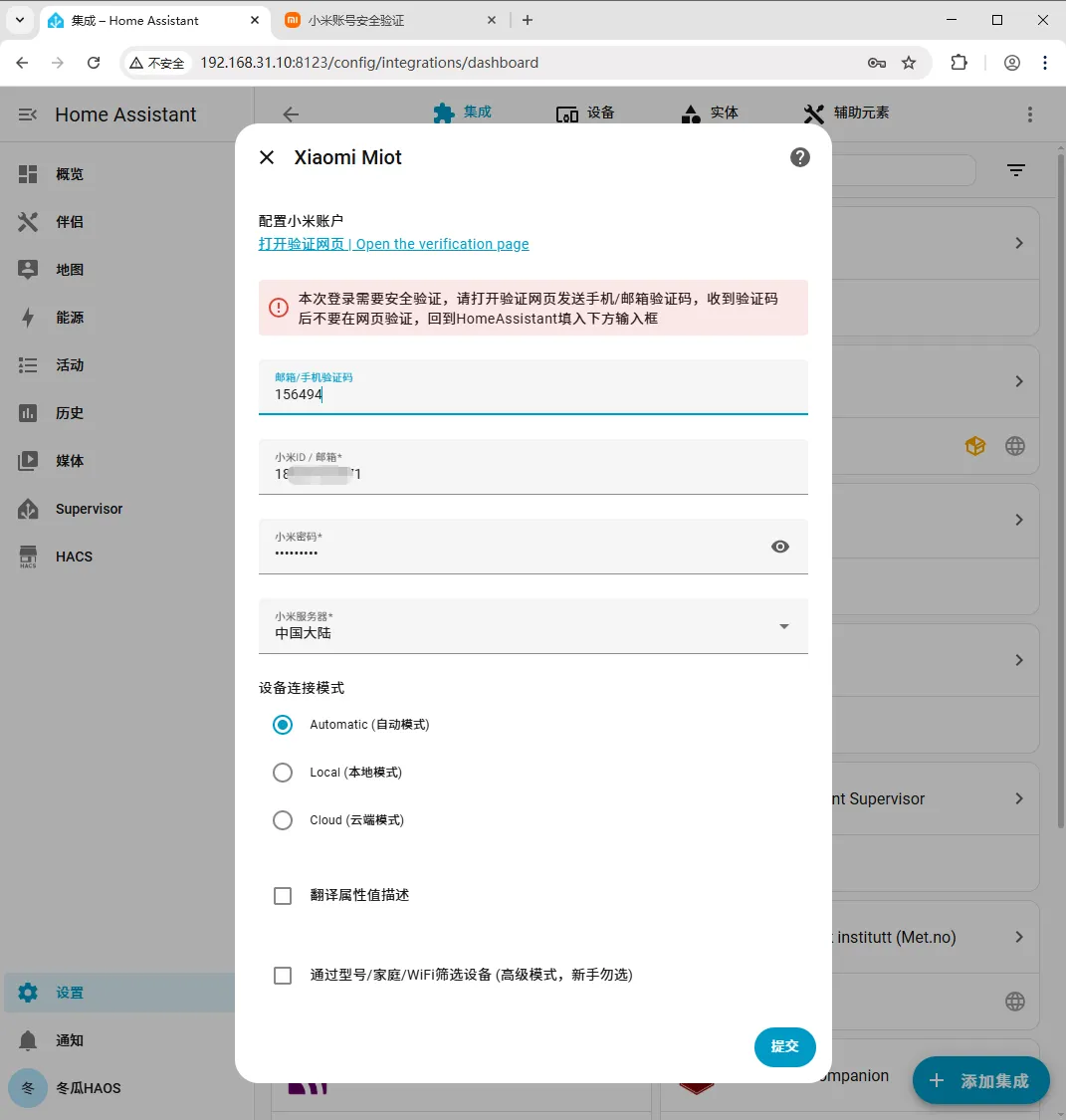
Section titled “Step 3: Enter your Xiaomi account and password”Enter your Xiaomi account and password, then click Submit. The system will prompt you to open a verification web page.
Step 4: Send the verification code
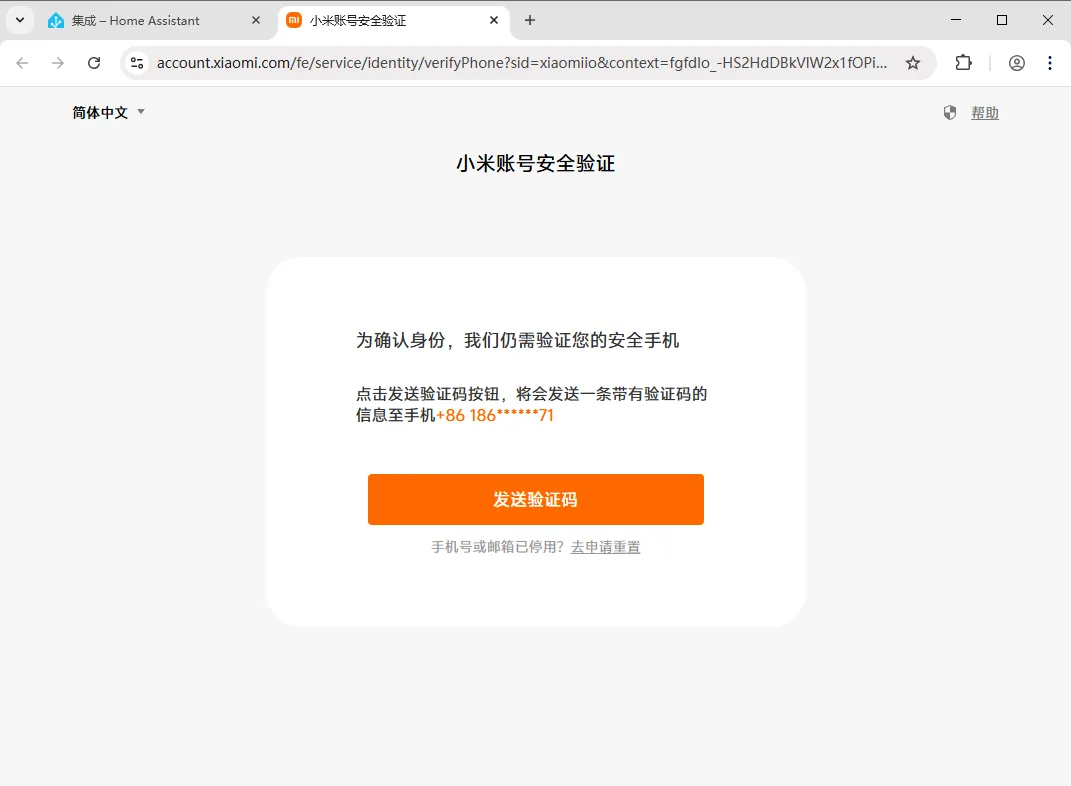
Section titled “Step 4: Send the verification code”On the verification web page, click Send verification code, and the system will send a verification message to your email or phone.
Step 5: Enter the verification code on the HA page
Section titled “Step 5: Enter the verification code on the HA page”Go back to the Home Assistant page, enter the code you received in the “Email / phone verification code” field, then click Submit.
Note: enter the verification code on the HA page, not on the web page.
Step 6: Choose a device filtering mode
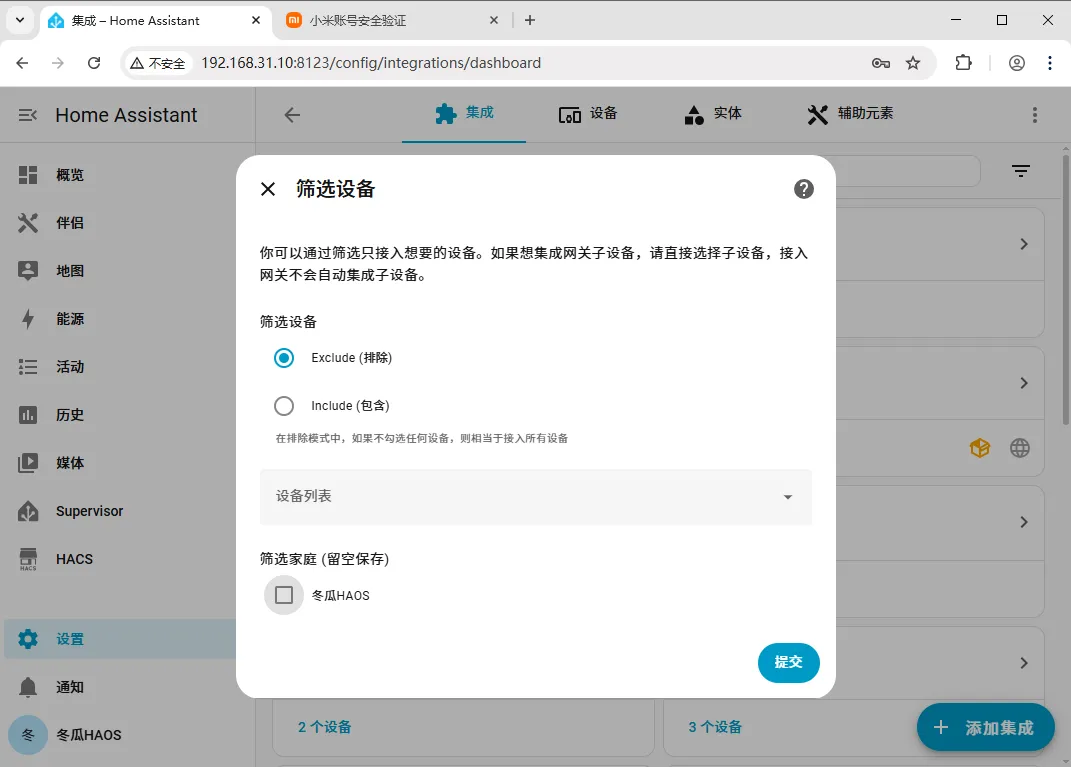
Section titled “Step 6: Choose a device filtering mode”At the device filtering stage, you can choose Exclude or Include:
- Choose Exclude: the checked devices will not be imported into HA.
- Choose Include: only the checked devices will be imported into HA.
- If you have no special needs, keep the defaults and just click Submit.
Step 7: Finish adding
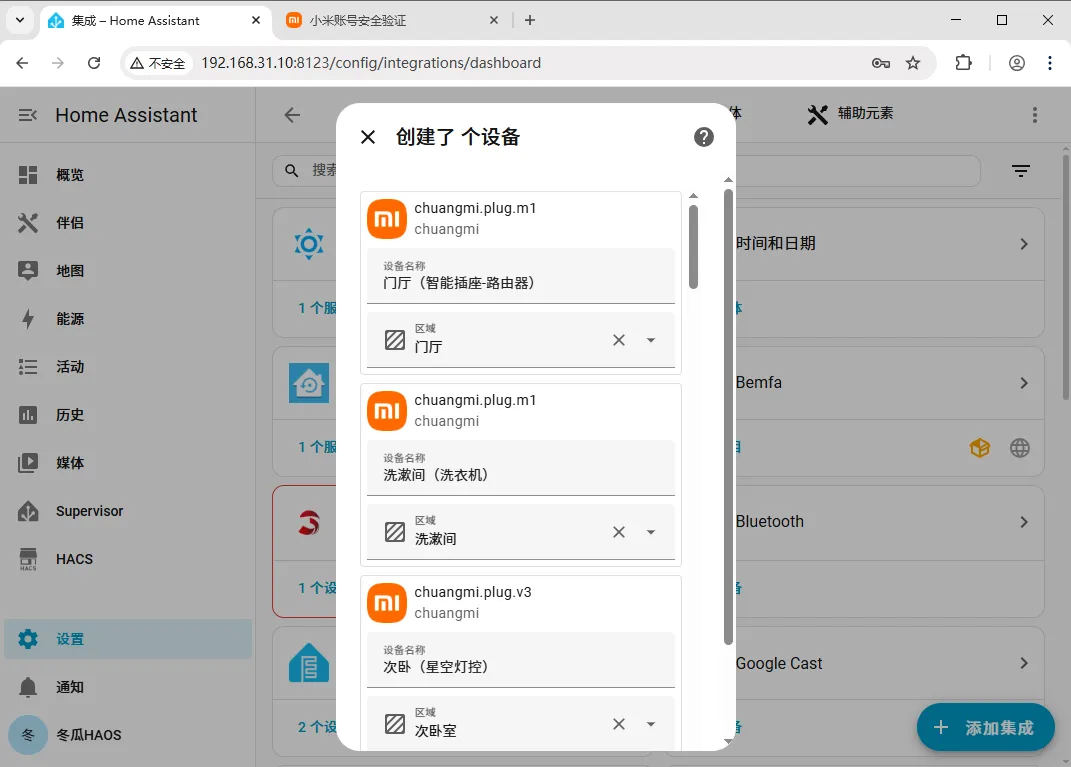
Section titled “Step 7: Finish adding”After confirming the settings are correct, finish adding. Setup is complete.
| Problem | Solution |
|---|---|
| Can’t find the xiaomi miot integration in search | Confirm the Donggua HAOS components are installed; update through HACS Turbo and retry, or restart Home Assistant once and search again. |
| Verification code doesn’t work / verification fails | Make sure you enter the code on the HA page, not on the web page; confirm the code is correct and not expired, and click “Send verification code” again if needed. |
| Not receiving the verification code | Check that the delivery target (email / phone) is correct, wait a moment, or resend. |
| Too many devices imported / want to import only some devices | In step 6, choose Include to import only the checked devices, or choose Exclude to leave out the devices you don’t want. |
Summary
Section titled “Summary”The core flow for setting up Xiaomi Miot is: Add Integration → search xiaomi miot → choose Account integration → enter account and password → send the code from the web page → enter the code on the HA page → choose a device filtering mode → done. Once complete, you can manage your imported Xiaomi Home devices in Home Assistant.